How to Check if Your WordPress Site Is Blocking AI Crawlers

If your WordPress site never shows up in ChatGPT, Claude or Perplexity answers, the problem might not be your content. It might be that the AI crawlers can’t read your pages at all.
Most people check their robots.txt file, see nothing alarming, and move on. But robots.txt is only one of four places where an AI bot can be turned away. Your CDN (a content delivery network such as Cloudflare), your security plugin and your web host can all block a crawler before WordPress even loads, and none of them tell you when it happens.
We ran this check on How-To WP itself and found that four AI crawlers were getting an error page, including PerplexityBot, which we never meant to block. We’ve since fixed it, and this guide walks you through the same checks, layer by layer, so you can see exactly what each bot gets from your site.
Disclosure: This article is part of the Semrush Creator Accelerator. We may earn a commission or a reward from Semrush if you use our links.
Quick answer
- Check four layers: your robots.txt file, your CDN (usually Cloudflare), your security plugin, and your host.
- Test what each bot actually receives: a request with the bot’s user agent should return
200. A403,429or challenge page means something is blocking it. - Know which bot does what: blocking a training crawler like GPTBot does not have to block AI search crawlers like OAI-SearchBot or PerplexityBot.
Which AI Crawlers Matter for a WordPress Site?
AI companies don’t use one crawler each. Most run separate bots for training their models, for building an AI search index, and for fetching a page when a user asks about it. The difference matters, because you can block one job and allow the others.
| Bot (robots.txt token) | Company | What it does | Follows robots.txt? |
|---|---|---|---|
| GPTBot | OpenAI | Collects content for model training | Yes |
| OAI-SearchBot | OpenAI | Finds pages to show in ChatGPT search results | Yes |
| ChatGPT-User | OpenAI | Fetches a page when a ChatGPT user asks for it | Not always (OpenAI says robots.txt rules may not apply) |
| ClaudeBot | Anthropic | Collects content that may be used for training | Yes |
| Claude-SearchBot | Anthropic | Indexes content to improve Claude search answers | Yes |
| Claude-User | Anthropic | Fetches pages to answer a Claude user’s question | Yes |
| PerplexityBot | Perplexity | Indexes sites to show and link them in Perplexity answers (not used for training) | Yes |
| Perplexity-User | Perplexity | Fetches a page a user asked about | Generally no |
| Google-Extended | Not a crawler. A robots.txt token that controls Gemini training and grounding. It does not affect Google Search | Yes (token only) | |
| CCBot | Common Crawl | Builds an open web archive that many AI models train on | Yes |
Sources: the official bot pages from OpenAI, Anthropic, Perplexity and Google, checked in November 2026. Bot names change, so check them again before you copy any rules.
So for a typical WordPress blog or business site, the bots that decide whether you appear in AI answers are mostly the search and user bots. The training bots decide whether your content helps train future models.
Step 1: Read Your Live robots.txt File
Open https://yourdomain.com/robots.txt in your browser. Always check the live file, not the settings screen, because three different things can write to it:
- WordPress itself serves a basic virtual robots.txt when there is no real file on the server.
- Your SEO plugin (SEO Repair Kit, Yoast, Rank Math and others) can add or replace rules.
- Cloudflare can add its own block at the top of the file. Cloudflare’s docs say it prepends its managed rules to your existing robots.txt and combines both into a single response.
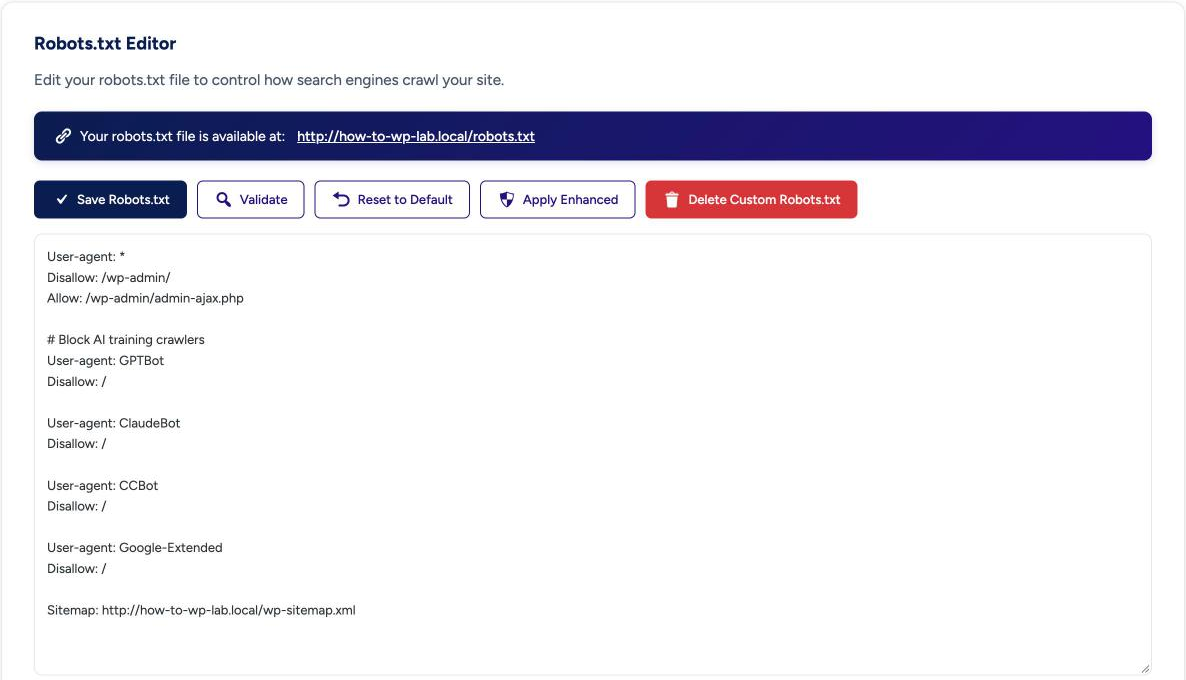
Look for a User-agent line naming a bot, followed by Disallow: /. That blocks the whole site for that bot. Here is part of the How-To WP robots.txt as we found it on 17 November 2026:
# BEGIN Cloudflare Managed content

User-agent: *
Content-Signal: search=yes,ai-train=no,use=reference
Allow: /

# Training crawlers
User-agent: ClaudeBot
Disallow: /

User-agent: GPTBot
Disallow: /

User-agent: Google-Extended
Disallow: /
...
# END Cloudflare Managed Content
Two things stood out when we read it. First, the whole Cloudflare managed section appeared twice, with slightly different rules in each copy. Second, PerplexityBot wasn’t listed at all, which suggests it should be allowed. As the next step shows, it wasn’t. We also found that one of the two copies wasn’t coming from Cloudflare at all: it was an old robots.txt file on our server that still held an earlier copy of Cloudflare’s rules. If you ever turned on Cloudflare’s managed robots.txt and later saved a file by hand, check for the same leftover.
That Content-Signal line is something Cloudflare adds automatically. It’s a newer way to state how AI systems may use your content, and you don’t need to add it yourself. The standard User-agent and Disallow lines still do the main work.
If you edit robots.txt in your SEO plugin, add new rules below the existing ones instead of replacing the whole file, so you keep your sitemap line and the default WordPress rules. In Yoast SEO the editor is under Yoast SEO > Tools > File editor. In Rank Math it’s under Rank Math SEO > General Settings > Edit robots.txt. In SEO Repair Kit it’s SEO Repair Kit > Bot Manager > Robots.txt. If Cloudflare already manages part of your robots.txt (see Step 3), make the change in Cloudflare instead of copying the same rules by hand.
For where robots.txt fits with the rest of your SEO setup, see our WordPress on-page SEO checklist.
Step 2: Test What Each AI Bot Actually Receives
A robots.txt file only asks bots to stay away. To see what a bot really gets, send a request with its user agent (the name a browser or bot sends with every visit) and look at the HTTP status code. On a Mac, open the Terminal app and run:
curl -s -o /dev/null -w "%{http_code}\n" -A "Mozilla/5.0 (compatible; GPTBot/1.4; +https://openai.com/gptbot)" https://yourdomain.com/sample-post/On Windows 10 or 11, open PowerShell and type curl.exe (not just curl, which PowerShell treats as a different command), with NUL in place of /dev/null:
curl.exe -s -o NUL -w "%{http_code}\n" -A "Mozilla/5.0 (compatible; GPTBot/1.4; +https://openai.com/gptbot)" https://yourdomain.com/sample-post/Swap in each bot’s user agent and run it against a normal post, not just your homepage. Here is what the codes mean:
200: the bot gets your page.403: the bot is refused or challenged. Something in front of WordPress (usually a CDN or firewall) is stopping it.429: the bot is rate-limited, which often happens on managed hosts.
A Cloudflare challenge page (the “Just a moment…” screen) also returns 403, so the code alone doesn’t tell you whether the bot was blocked or challenged. To see the difference, check the response headers with curl -I (or curl.exe -I on Windows) and the same -A user agent. A cf-mitigated: challenge header means it was a challenge.
These are the results we got for one How-To WP article on 17 November 2026:
| User agent | Status | What it means |
|---|---|---|
| GPTBot | 403 | Blocked |
| ClaudeBot | 403 | Blocked |
| PerplexityBot | 403 | Blocked, even though robots.txt doesn’t mention it |
| CCBot | 403 | Blocked |
| OAI-SearchBot | 200 | Allowed |
| Googlebot | 200 | Allowed |
| Bingbot | 200 | Allowed |
| Normal Chrome browser | 200 | Allowed |
PerplexityBot is the interesting one. Perplexity says it uses PerplexityBot only to show and link sites in its answers, not for training. Our robots.txt didn’t block it, yet it still got a 403. That is exactly the kind of silent block you won’t find by reading robots.txt.
One caveat: this test sends a real bot’s name from your own computer, so it isn’t the real bot. Cloudflare says its AI policies apply to verified bots and to unverified bots with a matching user agent, so a fake GPTBot request is a fair test of a block. A 200 is less certain, because some firewalls only let a bot through after checking its IP address. Confirm in your logs (Step 5) before you rely on it.
Step 3: Check Your Cloudflare Settings
If your site uses Cloudflare, this is the most likely place for a block. In November 2026, Cloudflare’s AI bot controls live under Security > Settings. Filter by Bot traffic and open AI Crawler and Agent access policies. Older Cloudflare guides may call this “Block AI bots” or “Configure AI bot policies”.
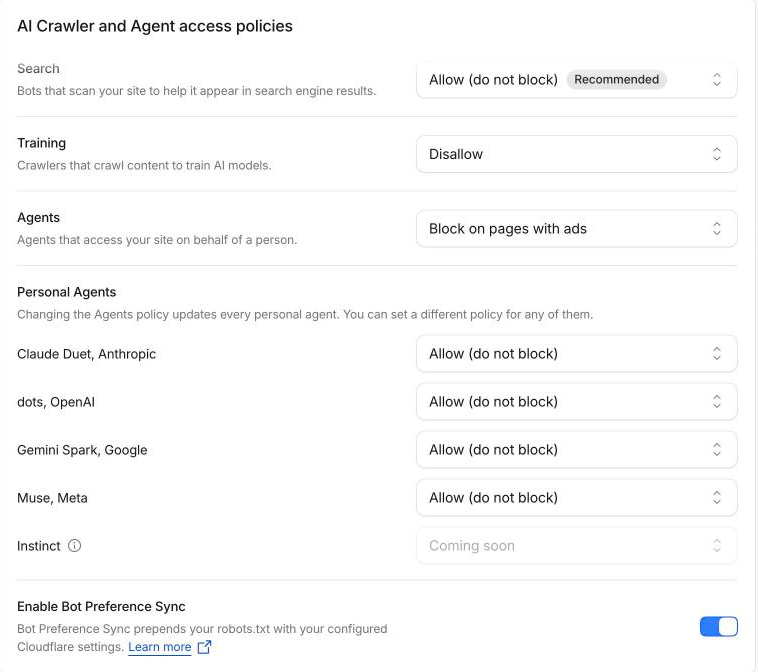
You’ll see three types of bots, each with its own setting:
- Search: crawlers that index content for later answers.
- Agent: bots that fetch pages in real time for a user, such as ChatGPT-User.
- Training: crawlers that collect content for AI training. Cloudflare also puts mixed-purpose crawlers here.
Here is how How-To WP was set up in November 2026: Search on Allow, Training on Disallow, Agents on Block on pages with ads, and Bot Preference Sync turned on. Bot Preference Sync is what wrote the managed block into our robots.txt in Step 1.
Nobody chose those settings on purpose, and they didn’t match what we wanted. On 18 November 2026 we switched Search, Training and Agents to Allow, replaced the old server robots.txt with a simple allow-all file, and purged it from Cloudflare’s cache. A rerun of the Step 2 test then returned 200 for GPTBot, OAI-SearchBot, ChatGPT-User, ClaudeBot, Claude-SearchBot, Claude-User, PerplexityBot and Perplexity-User.
Each one can be set to Block, Block on pages with ads or Allow. Training also has a Disallow option. On its own, Disallow writes a robots.txt rule asking training crawlers to stay away. When Bot Preference Sync is on, Cloudflare’s docs say Disallow also blocks training crawlers at Cloudflare’s edge, except mixed-purpose crawlers. Cloudflare’s docs say new domains now start with everything on Allow. So if you see Block, someone chose it, or the site was set up under older defaults.
That setup explains most of our Step 2 results, but not PerplexityBot. Perplexity describes it as a search crawler, and our Search setting is Allow, yet it still got a 403. So how Cloudflare labels each bot (search, training or mixed) decides what it gets. Don’t assume. Check the security events, as below.
While you’re here, check two more places:
- Enable Bot Preference Sync: when this is on, Cloudflare writes your choices into robots.txt as the managed block from Step 1.
- Security events: filter by a bot’s user agent to see which rule blocked it. On How-To WP, this is how you’d confirm why PerplexityBot got a
403.
Also look at your custom WAF rules (rules in Cloudflare’s Web Application Firewall) and rate limiting rules. A rule written years ago to stop scrapers can catch AI crawlers too.
Finally, check Bot fight mode on the same Settings page (Super Bot Fight Mode on paid plans). It challenges traffic that looks automated and is a common reason for unexpected bot blocks. On How-To WP it was off, so it wasn’t our cause.
Step 4: Check Your WordPress Security Plugin
Security plugins block bots inside WordPress, after Cloudflare has let the request through. The settings to look at are rate limiting, blocked user agents and fake crawler protection.
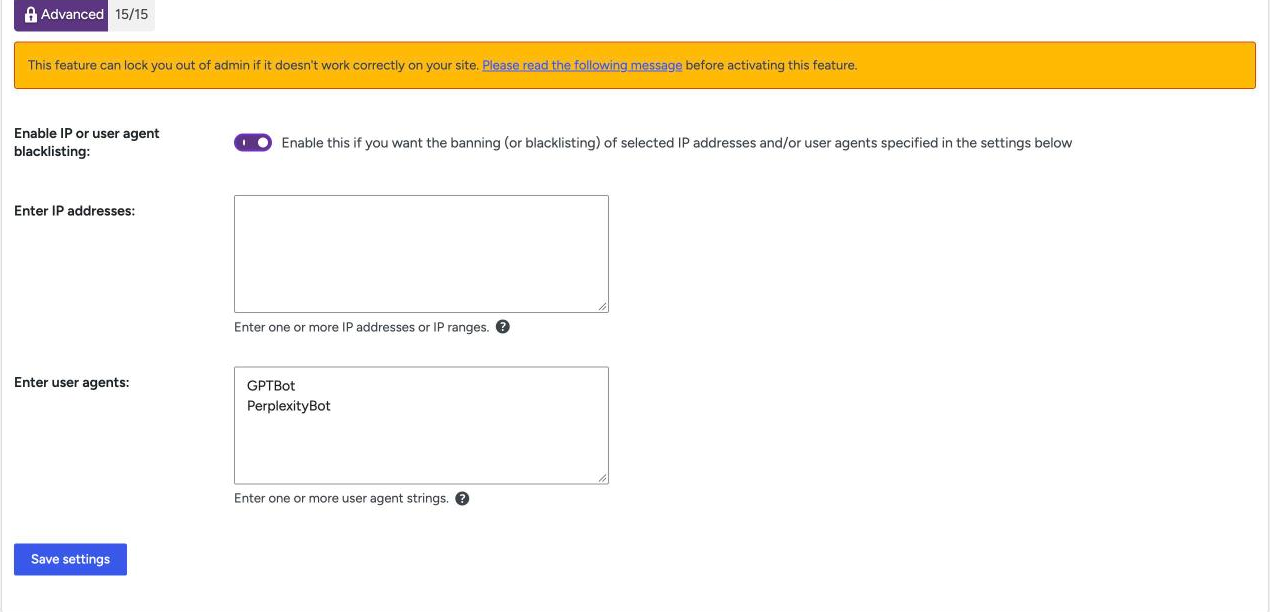
To see how easily a plugin can do this, we installed All-In-One Security 5.5.1 on our lab site, opened AIOS > Firewall > Block & allow lists, turned on Enable IP or user agent blacklisting and entered GPTBot and PerplexityBot. Then we ran the Step 2 test against a lab post:
| User agent | Status |
|---|---|
| GPTBot | 403 |
| PerplexityBot | 403 |
| OAI-SearchBot | 200 |
| ClaudeBot | 200 |
Two lines in one box were enough to block two AI crawlers completely, and nothing in WordPress warns you about it later. If you inherited a site, or followed an old “block bad bots” tutorial, check this list for AI bot names you don’t want there.
Wordfence handles bots differently. In our lab install of Wordfence 9.1.1, the rate limiting rules under Firewall > All Firewall Options > Rate Limiting were all set to Unlimited, verified Google crawlers were never rate-limited, and the option to block fake Google crawlers was off. So a fresh Wordfence install doesn’t block AI bots by default, but tightened crawler limits can throttle them, and Wordfence only treats verified Google crawlers as special. Check the crawler limits if you changed them.
One catch when testing: if your site uses page caching (WP Rocket, LiteSpeed Cache, WP Super Cache or your host’s cache), cached pages can be served before the security plugin runs. A cached post may return 200 while an uncached one returns 403, so clear the cache before you test.
If a bot gets a 200 when you pause the plugin and a 403 when it’s active, the plugin is the cause. Turn it back on straight away and fix the specific setting, instead of leaving your site unprotected.
Step 5: Check Your Host and Server Logs
Some managed WordPress hosts block or rate-limit AI crawlers at the server level, and you can’t see that setting in WordPress. Check your host’s help docs for “AI crawlers” or “bot protection”, or ask support directly whether they block GPTBot, ClaudeBot or PerplexityBot.
Your access logs give you the final answer, because they show real visits from the real bots. In cPanel, open Metrics > Raw Access and download the log, or use your host’s log viewer. Then search for each bot name. If you’re comfortable with the command line, use:
grep -i "GPTBot" access.log | tail -20Otherwise, note that cPanel downloads the log as a compressed .gz file. Double-click it to extract it, open the file in Notepad or TextEdit, and search for GPTBot with Ctrl+F (Cmd+F on a Mac).
Check the status code in each line. You can also confirm a visit is genuine by matching its IP address against the lists each company publishes. Each bot has its own list, so check the right one:
- OpenAI:
openai.com/gptbot.json,openai.com/searchbot.jsonandopenai.com/chatgpt-user.json. - Anthropic:
claude.com/crawling/bots.json(one list for all its bots). - Perplexity:
perplexity.ai/perplexitybot.jsonandperplexity.ai/perplexity-user.json.
If a bot never appears in your logs at all, it is either blocked before it reaches your server (at Cloudflare) or it hasn’t found your site yet.
How to Allow or Block AI Crawlers on Purpose
Once you know what’s blocked, decide on purpose instead of leaving it to defaults. Most WordPress sites fit one of these three setups. How-To WP now uses the first one, because we want ChatGPT, Claude, Perplexity and Gemini to be able to read and cite our tutorials.
| Setup | Good for | Training bots | Search and user bots |
|---|---|---|---|
| Allow everything | Blogs and businesses that want maximum AI visibility | Allow | Allow |
| Block training, allow AI search | Most content sites that want citations but not training | Block | Allow |
| Block all AI | Paywalled or licensed content | Block | Block |
For the middle option, a robots.txt like this blocks the main training crawlers but leaves search and user bots alone:
User-agent: GPTBot
Disallow: /

User-agent: ClaudeBot
Disallow: /

User-agent: CCBot
Disallow: /

User-agent: Google-Extended
Disallow: /

User-agent: *
Allow: /
One trade-off with Google-Extended: Google uses this single token for both Gemini training and grounding in the Gemini app. Blocking it doesn’t affect Google Search or AI Overviews, which use Googlebot, but it can stop the Gemini app from using your pages in its answers. Google-Extended also never appears as a visitor in your logs, so you can’t test it with curl or block it in a firewall without blocking Googlebot.
Remember that robots.txt is voluntary. To enforce the same choice, set the matching Cloudflare policy (Training on Block, Search and Agent on Allow) and make sure your security plugin and host agree with it. After any change, run the tests from Step 2 again. OpenAI and Perplexity both say robots.txt changes can take about 24 hours to take effect.
Keep Checking After Every Change
AI crawler access breaks quietly. A Cloudflare update, a new security plugin, a host migration or a single WAF rule can block a bot you rely on, and you won’t notice until your brand stops showing up in AI answers.
Two habits help. First, rerun the curl tests from Step 2 whenever you change your CDN, security plugin or host. Second, run a regular crawl so error pages are caught early. Semrush‘s Site Audit crawls your whole site and flags pages that return errors or can’t be reached, and its robots.txt checks warn you when rules change. Once access is fixed, the AI Visibility Toolkit shows whether your site actually gets mentioned and cited in ChatGPT, Perplexity, Gemini and Claude.
If you’d rather have someone check this for you, our WordPress fix service can audit your robots.txt, Cloudflare and security settings and tell you exactly what each bot sees.
Frequently Asked Questions
Does blocking GPTBot remove my site from ChatGPT?
No. GPTBot only collects training data. ChatGPT search uses OAI-SearchBot, and live page fetches use ChatGPT-User. You can block GPTBot and still appear in ChatGPT search, as long as OAI-SearchBot can reach your pages.
Does blocking Google-Extended hurt my Google rankings?
No. Google says Google-Extended does not affect whether your site appears in Google Search and is not a ranking signal. It controls whether your content is used for Gemini training and grounding.
Why does a bot get blocked when my robots.txt allows it?
Because robots.txt is only a request. A CDN like Cloudflare, a security plugin or your host can refuse the connection before the bot ever reads robots.txt. That’s why Step 2 tests what each bot actually receives.