How to Fix Duplicate Meta Descriptions in WordPress [Step-by-Step]

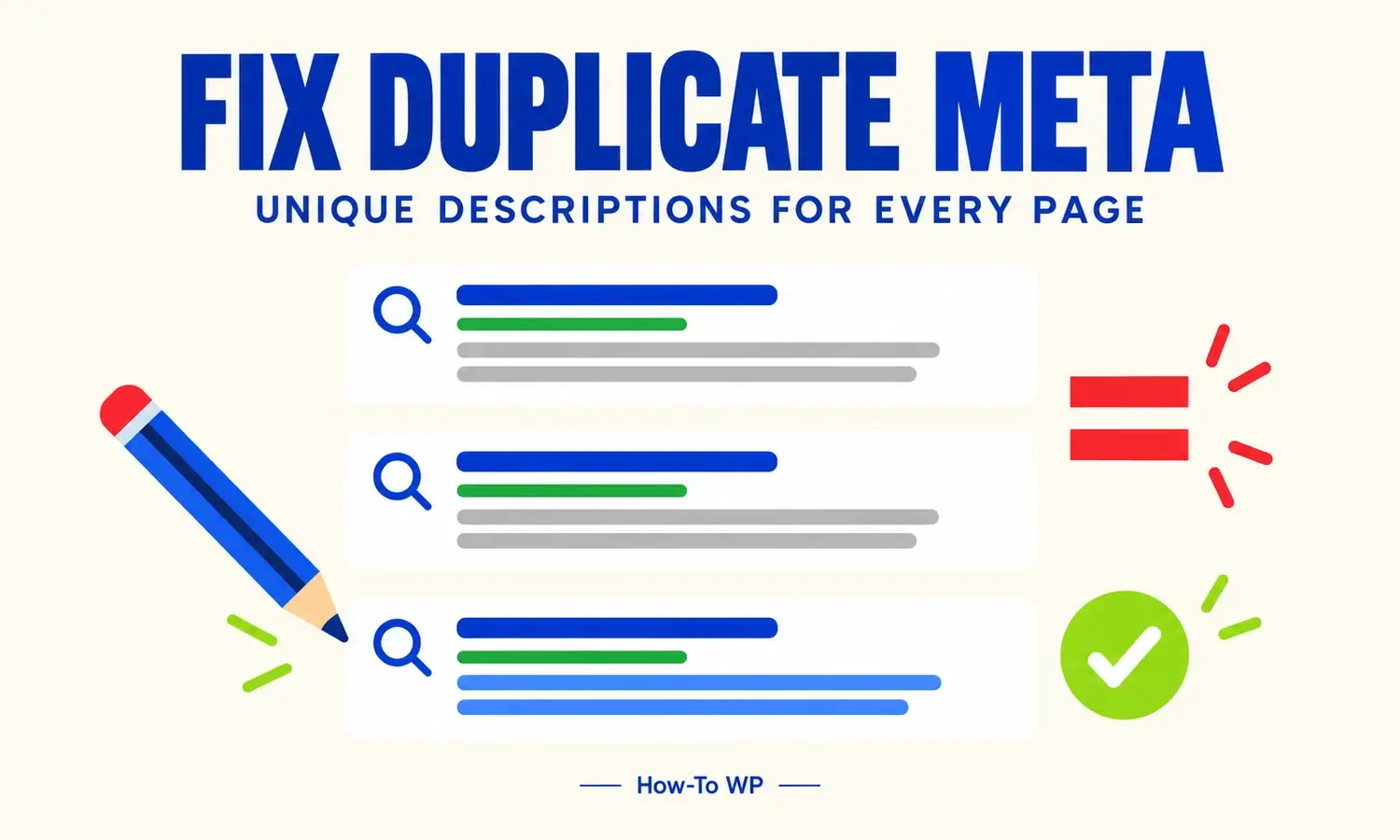
Duplicate meta descriptions are one of those WordPress SEO issues that look small at first, but they can quietly make your search results messy.
You open an SEO audit tool, expecting to see a few warnings, and then you notice the same sentence repeated on dozens of posts and pages. Sometimes it is your site tagline. Sometimes it is a default SEO plugin template. Sometimes it is an old setting left behind after changing SEO plugins.
To fix duplicate meta descriptions, identify which distinct pages share the same summary, write a description specific to each important page, and verify the public HTML. If one page outputs two description tags, fix the competing sources of metadata. Do not use noindex just to clear a duplicate-description warning.
In this article, you will learn how to find and fix duplicate meta descriptions in WordPress step by step.

Two different problems that audit tools can flag
| What you find | What to fix |
|---|---|
| One description on each of several different pages, all with the same wording | Write a specific description for each distinct page. Check the fallback template that repeats the text. |
| Two description tags inside one page’s head | Identify which theme, plugin, or custom code outputs each tag. Keep one source responsible for that tag. |
| The same article at multiple URLs | Review canonical URLs and redirects. Different descriptions will not make duplicate content distinct. |
Example: a footer-image tutorial should describe adding an image, while a footer-credit tutorial should describe changing the credit. A shared “WordPress tips” description hides that distinction.
<!-- Example: two competing tags on ONE page -->
<meta name="description" content="WordPress tips">
<meta name="description" content="Add an image to a WordPress footer">
The example shows the problem; do not paste both tags into your site. After fixing the responsible setting, verify that the page outputs a single ordinary description tag. Tags shown inside a tutorial’s visible code example are not metadata in the document head.
What Are Duplicate Meta Descriptions?
A meta description is a short summary of a page. It is added inside the HTML head of your page and looks something like this:
<meta name="description" content="Learn how to fix duplicate meta descriptions in WordPress." />Duplicate meta descriptions happen when two or more different URLs use the same description. For example, your homepage, blog archive, and 20 posts might all use:
WordPress Tutorials for Beginners
That description may be fine for a homepage, but it is not useful for an AdSense tutorial, a WordPress speed guide, a theme selection guide, and a hosting article at the same time.
Google says identical or similar descriptions on every page are not helpful when individual pages appear in search results. Google may use the meta description to create the search snippet when it describes the page better than the visible content, but it can also rewrite the snippet if your description is not useful enough. You can read Google’s own guidance on snippets in Google Search Central.
Do Duplicate Meta Descriptions Hurt SEO?
Duplicate meta descriptions are not usually a direct Google penalty. Google is not going to ban your site because two pages share the same snippet.
But they can still hurt your SEO in a practical way.
- Your pages look less useful in the search results.
- Google may select a different passage from the page that better matches a particular search.
- Users may not understand which result is the right one to click.
- Important pages can start competing with the same generic message.
- SEO audit tools will keep flagging the same issue until it is fixed.
If you are already working on on-page SEO in WordPress, then your meta descriptions should not be ignored. They are not magic ranking buttons, but they help your page earn the click when it already appears in search.
Why This Happens in WordPress
WordPress itself does not force every page to use the same description. The problem usually comes from the way your theme, SEO plugin, or page builder outputs metadata.
Here are the most common reasons I see this issue on WordPress sites:
- An SEO plugin uses the same default description for every post.
- The site tagline is used as a fallback meta description.
- Two SEO plugins are active at the same time and both output meta tags.
- The theme adds its own description while your SEO plugin adds another one.
- Blog archives, category pages, author pages, and pagination reuse the same template.
- Old metadata was imported from another plugin and never cleaned up.
This is why the fix should start with a crawl. Guessing from the WordPress dashboard alone can waste a lot of time.
Step 1: Find the Duplicate Meta Descriptions
First, you need a list of URLs that have the same description. You can use an SEO crawler like Screaming Frog, Ahrefs Site Audit, Semrush Site Audit, Sitebulb, or any WordPress SEO tool that checks metadata.
If you are using SEO Repair Kit, check your technical SEO reports and metadata tools first. Since it already lives inside WordPress, it is a good place to start before moving to external crawlers.
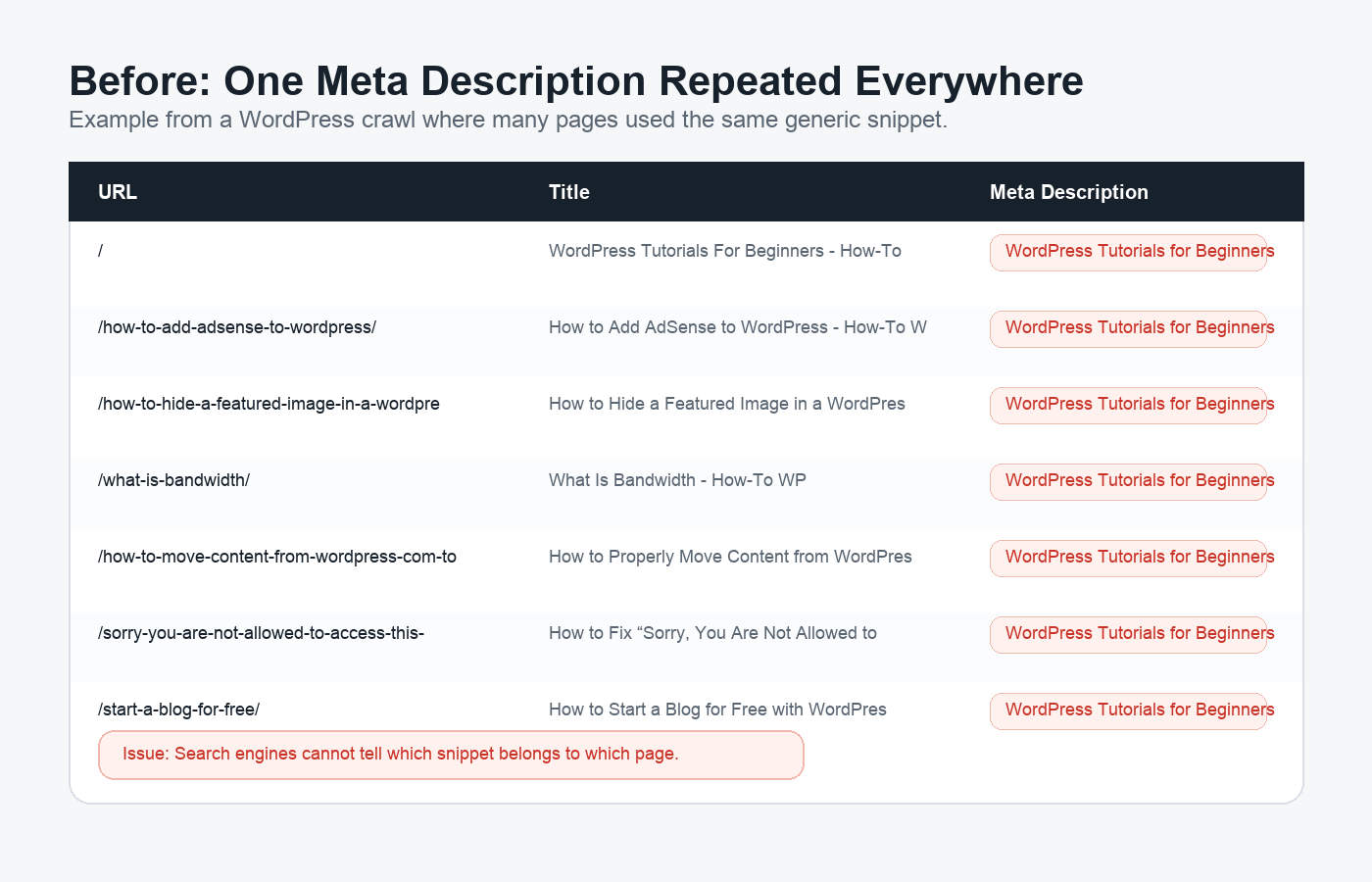
When reviewing the crawl, do not panic if you see a long list. Sort the results into three groups:
- Important posts and pages that should rank in Google.
- Archive pages like blog, category, tag, author, and date archives.
- URL variations and utility pages such as internal search results and comment-reply parameters. Review their purpose separately from useful pagination.
Prioritize distinct pages that people should find in search. Review archives for usefulness, and check whether parameter URLs duplicate an existing page. Repeated descriptions alone do not tell you which URLs should be excluded from search.
Step 2: Check the Page Source
Before changing settings, check a few pages manually. This tells you whether the problem is really the meta description tag or just a crawler misunderstanding.
Open one affected page in your browser, right-click, and select View Page Source. Then search for:
name="description"
Check inside the page’s <head> for one meta name="description" tag. Do not count og:description or twitter:description as extra Google description tags. If two ordinary description tags exist, identify their sources on a staging copy and disable only the redundant metadata output after preserving the settings. Deactivating an entire SEO plugin can also change titles, redirects, sitemaps, and other features.
Using one SEO plugin is important. If you are using SEO Repair Kit, then keep your older SEO plugin inactive unless you are only using it for a very specific feature that does not output metadata.
Step 3: Decide Which Pages Should Be Indexed
Decide indexing based on the page’s purpose, not its description warning. Useful posts, products, and topic archives can deserve search visibility. An internal search result or a newsletter confirmation page may not.
For genuine duplicate URLs, first review redirects and canonical URLs. Google recommends canonicalization methods for consolidating duplicate content; noindex is not the recommended way to select a canonical page. See Google’s canonicalization guidance.
Do not automatically noindex /blog/page/2/. A paginated archive displays different posts and can help discovery. Google recommends a separate canonical URL for each page in a paginated series rather than pointing every page to page one. See its pagination guidance.
When a page really should be excluded from search, use the appropriate noindex directive and let Google crawl it to see the instruction. A robots.txt disallow is not a substitute. See Google’s noindex documentation.
Step 4: Write Unique Meta Descriptions
Now comes the part that matters most: writing a description that actually fits the page.
A good meta description should tell the reader what they will learn, include the main keyword naturally, and give them a reason to click. Keep it short enough that it does not get cut off too badly in the search results.
Here is a simple formula you can use:
Learn how to [solve the problem] in WordPress using [method/tool] so you can [benefit].
For example, instead of writing:
WordPress Tutorials for Beginners
You can write:
Learn how to add Google AdSense to WordPress, place ad code safely, and check that ads are loading on your website.
That second version is much better because it is specific. It tells the reader exactly what the article is about.
Meta Description Tips
- Use the page’s main keyword once, naturally.
- Do not stuff keywords just to make the plugin score look better.
- Write a summary, not a slogan.
- Do not use the same sentence on similar posts.
- Keep the description concise and accurate. A preview length is an editorial aid, not a fixed Google limit; snippets can be truncated to fit the device.
If you want to understand how meta tags work in general, then you can also read our guide on how to add meta tags in WordPress.
Step 5: Fix the Description in SEO Repair Kit
Once you have written a unique description, open the post or page in WordPress. Open SEO Repair Kit, choose Meta Manager, and click Edit Snippet to edit the title and description.
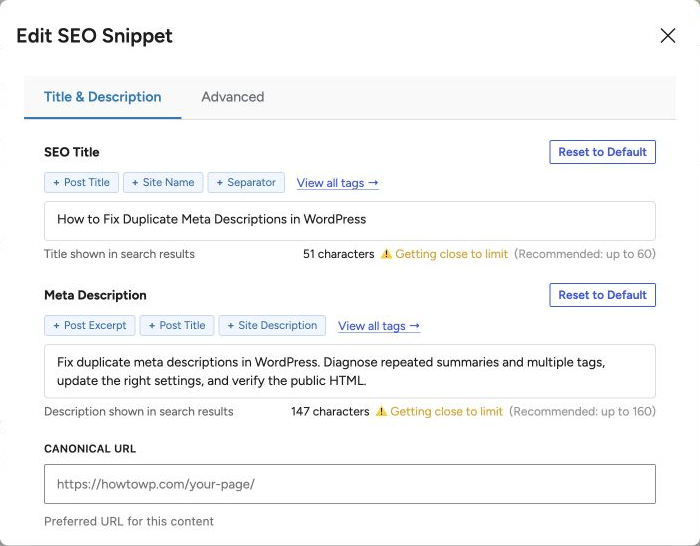
- Go to Posts or Pages in your WordPress dashboard.
- Open the page that has a duplicate description.
- Find the SEO Repair Kit meta title and description fields.
- Add a unique SEO title if the current title is too long or too generic.
- Add a unique meta description that matches the page.
- Update the post or page.
Do this for your most important posts first. If your site has hundreds of posts, start with pages that already get impressions in Google Search Console or pages that are linked from your homepage and main menu.
Step 6: Fix WordPress Archive Pages
Review the archive’s role before changing its settings. A useful category page may deserve an informative summary. An author or date archive needs an individual decision based on its content and audience; the archive type alone does not determine whether it is useful.
For pagination, keep the page number clear in titles and maintain each page’s own canonical. Do not exclude the entire series merely because an audit reports repeated descriptions. Template settings vary between SEO plugins, so verify the actual source of a category page and page two after editing.
If a saved description is not appearing, check whether the URL is a static page, a posts index, or a generated archive. Those can use different settings even when they look similar in the dashboard.
Step 7: Clear Cache and Crawl Again
After updating your metadata, clear your WordPress cache. If you use a caching plugin, CDN, or server-level cache, clear those as well. Otherwise, your crawler may still see the old description for a while.
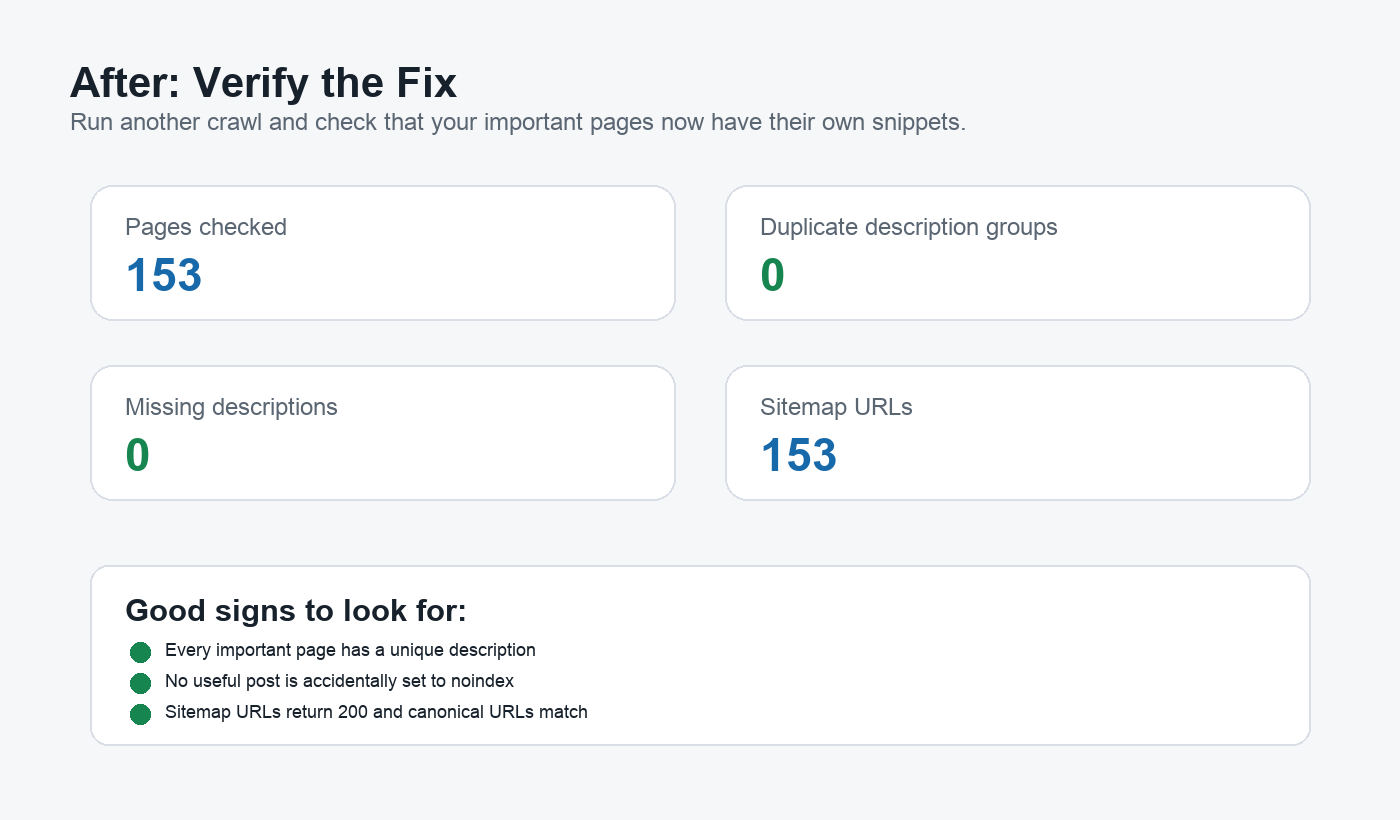
Then crawl the site again and check these items:
- Duplicate meta description groups should be gone or reduced.
- Important posts should have one unique meta description.
- Low-value archives should be noindex if you do not want them ranking.
- Your XML sitemap should include only useful indexable URLs.
If duplicate tags keep returning because a theme or plugin is adding its own output, see my WordPress repair services. Send an affected URL and the source-code example so I can assess the conflict and confirm the repair scope.
Good and Bad Meta Description Examples
Here are a few examples to make this easier.
| Page | Bad Description | Better Description |
|---|---|---|
| WordPress speed guide | WordPress Tutorials for Beginners | Learn how to speed up WordPress using caching, image optimization, plugin cleanup, and simple performance fixes. |
| Meta tags guide | Best WordPress tips and tricks | Learn how to add meta tags in WordPress using an SEO plugin and check that your title and description appear correctly. |
| Staging site guide | WordPress blog articles | Learn how to create a WordPress staging site so you can test updates safely before changing your live website. |
The better examples are not longer just for the sake of being longer. They are better because they match the exact page.
Quick Checklist
- Crawl your WordPress site and export duplicate descriptions.
- Check a few pages manually using View Page Source.
- Make sure only one SEO plugin is outputting metadata.
- Write unique descriptions for important posts and pages.
- Review archive usefulness and duplicate URL handling separately; preserve useful paginated archives.
- Clear your cache after making changes.
- Crawl again and verify the duplicate groups are fixed.
Summary
Duplicate meta descriptions in WordPress are common, especially on sites that have changed SEO plugins, used default templates, or left archive pages untouched.
Find the repeated descriptions, check whether each page has one tag or several, update the responsible settings, and verify the public HTML. Treat indexing and canonicalization as separate decisions based on the pages themselves.
Do not try to make every page perfect in one sitting. Start with the posts and pages that matter most. That alone can clean up your search appearance and make your WordPress site look much more useful in the SERPs.
FAQ’s
How long should a WordPress meta description be?
There is no fixed character limit, but a practical range is around 120 to 160 characters. The main goal is to write a clear summary that matches the page and makes sense in search results.
Will Google always use my meta description?
No. Google can rewrite snippets depending on the search query. Still, a good meta description gives Google a strong option to use and helps you control the message better.
Should every WordPress page have a unique meta description?
Every important indexable page should have one. Low-value pages like internal search results, author archives, and paginated archives need decisions based on their purpose. Useful pagination should not be noindexed just because descriptions repeat.
Can I use the same meta description for similar posts?
It is better not to. Even if two posts are similar, each page should have a description that explains what makes that specific page useful.
Can duplicate meta descriptions happen after changing SEO plugins?
Yes. This is very common. Old metadata, fallback templates, and multiple active SEO plugins can all cause duplicate or multiple meta description tags. After changing SEO plugins, crawl your site and check the page source on a few important URLs.