Did the November 2026 Core Update Hit Your WordPress Site? How to Check

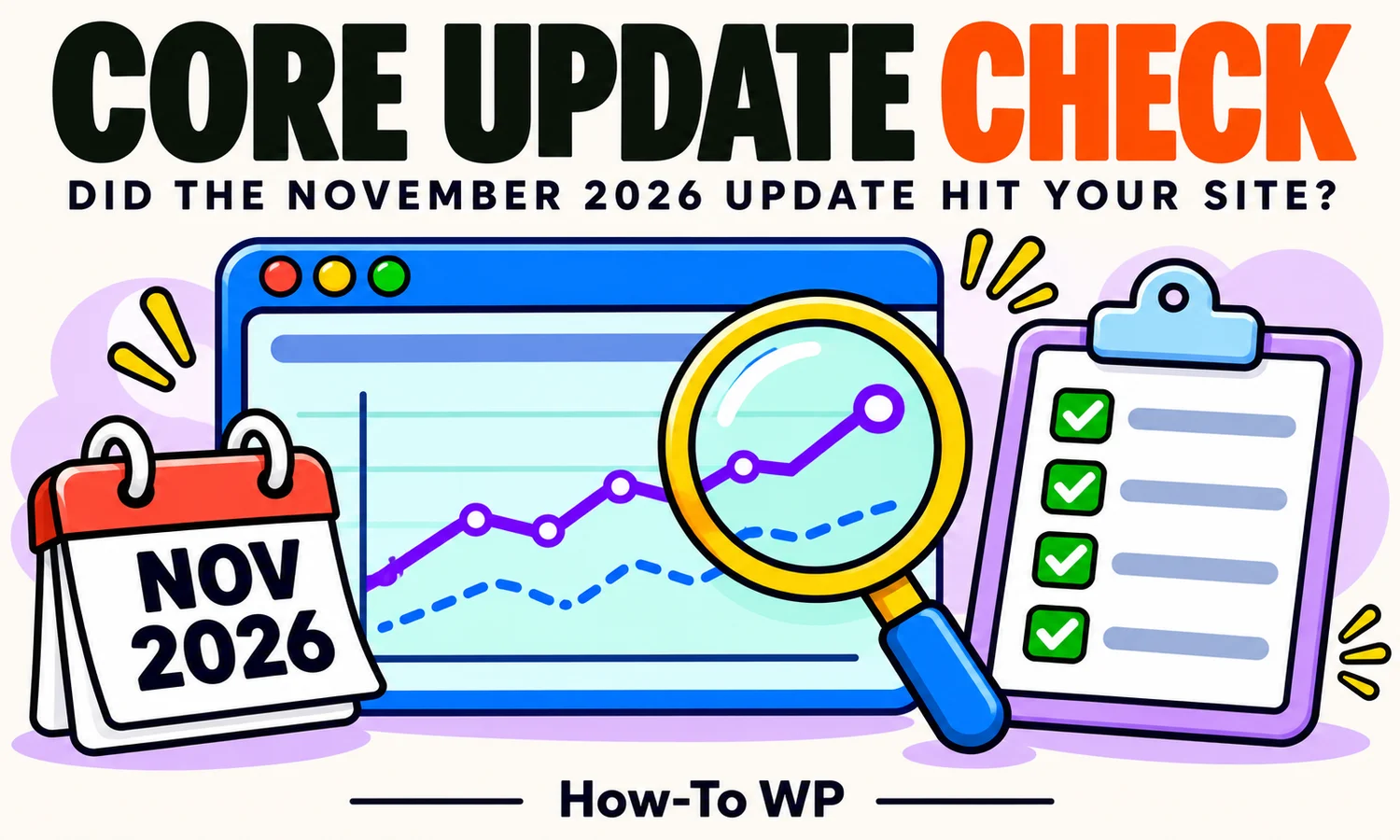
Google started rolling out its November 2026 core update on 10 November, and WordPress site owners everywhere are refreshing Search Console to see if their traffic moved.
Here’s the problem: if you check too early, you’ll blame the update for drops it didn’t cause, or miss the ones it did. Rankings bounce around during a rollout, and a lot of things that happen on a WordPress site (a plugin update, a firewall change, a setting left on after a redesign) look exactly like an algorithm hit.
This guide shows you how to check properly: save a baseline now, log your own changes, compare the right weeks once the rollout ends, and rule out the WordPress problems that often get mistaken for a core update.
Disclosure: This article is part of the Semrush Creator Accelerator. We may earn a commission or a reward from Semrush if you use our links.
Quick answer
- Don’t diagnose during the rollout. Save a dated baseline from Search Console today.
- Wait until Google confirms the rollout is complete, then wait one more full week.
- Compare that week with the week before the rollout began (Google’s own advice), looking at impressions, clicks and position by page.
- Rule out WordPress causes first: “Discourage search engines”, accidental noindex, robots.txt and bot blocks, sitemap and plugin changes.
What We Know About the November 2026 Core Update
Google announced the update on the Google Search Status Dashboard. It’s the only source that confirms official dates, so check it there rather than relying on social media:
- Start: 10 November 2026, at 10:06 a.m. Pacific time.
- Length: up to two weeks, so it may finish around 24 November.
- Scope: global, all languages.
- Context: it’s the third core update of 2026, after the March and May updates.
Status: as of 18 November 2026, the Search Status Dashboard still lists the update as in progress. We’ll update this line when Google confirms it has finished.
A core update doesn’t target WordPress or any specific technology. Google describes core updates as broad changes to how it assesses content overall. So if your WordPress site dropped, the question is whether it was the update, something on your site, or normal ups and downs.
One more complication this time: SEO professionals have reported that third-party rank trackers disagree with each other during this rollout. That’s another reason to treat your own Search Console data as the main source of truth.
Step 1: Save a Clean Baseline Today
Record where you stood before the update. Don’t use the default “last 28 days” range: the rollout started on 10 November, so that range would mix normal days with rollout days. In Google Search Console, open Performance > Search results, click the date filter, choose Custom, and set 13 October to 9 November 2026 (the 28 days before the rollout). Then turn on all four metrics: clicks, impressions, CTR (click-through rate) and average position.
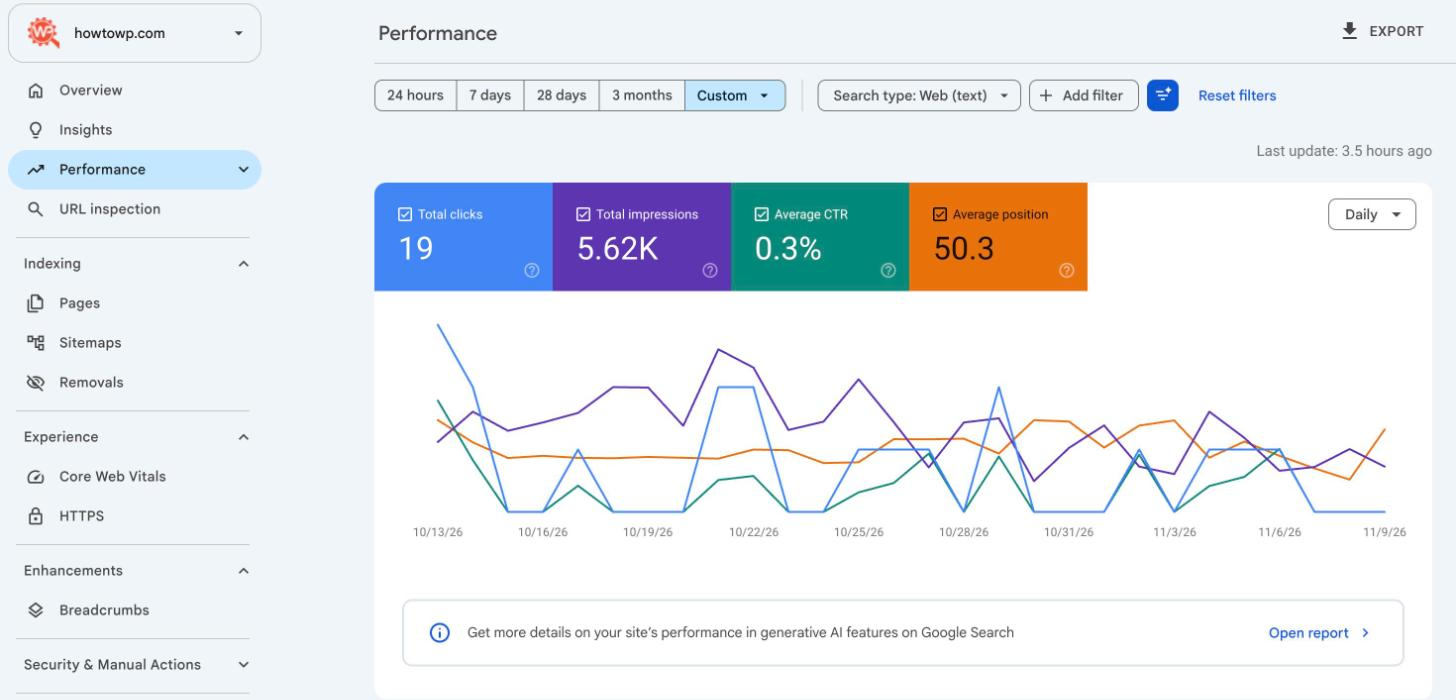
Then click Export and download the data to Google Sheets or Excel. Name the file with the date range. The export includes your top queries and pages, which you’ll need for the comparison later. Search Console keeps 16 months of data, so you can always rebuild this baseline, but a saved copy is quicker to compare against.
If you use the Site Kit plugin, its dashboard inside WordPress shows the same Search Console numbers. It’s fine for a quick look, but the full export from Search Console gives you more rows to compare.
Step 2: Write Down Everything Else That Changed
This is the step most people skip, and it’s the one that saves you from wrong conclusions. List every change on your site from about two weeks before the update to now:
- Plugin and theme updates, especially SEO, caching, security and page builder plugins.
- Design changes, new templates, or a redesign.
- Changes to Cloudflare, your firewall, or your host.
- Content changes: deleted, merged, redirected or heavily rewritten posts.
- Seasonal patterns. The rollout ends right before Black Friday, so shopping and deal-related sites will see unusual traffic anyway.
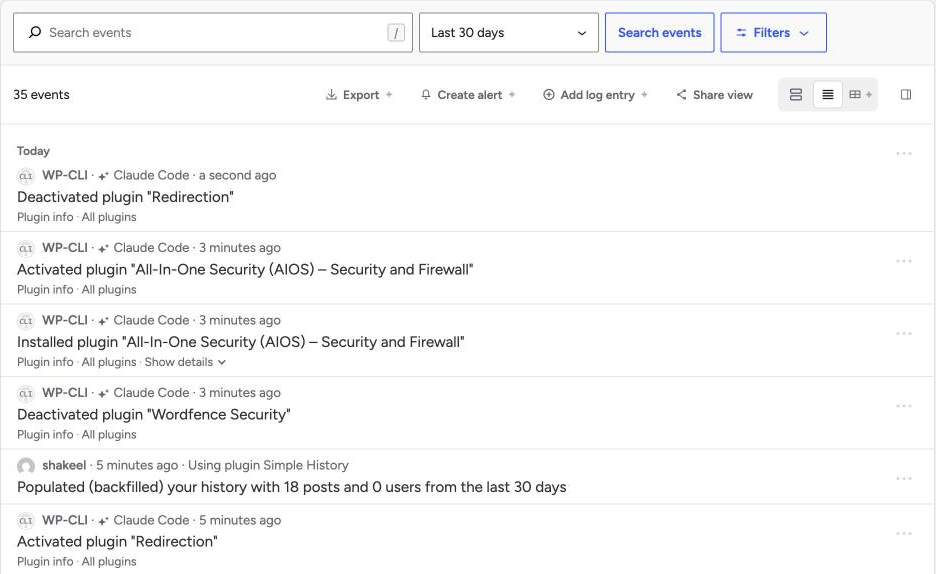
WordPress doesn’t keep a history of plugin updates by default. If you don’t already use an activity log plugin, install one now so you have a record for next time. We use the free Simple History plugin on our test site. It logs every plugin install, activation, deactivation and update with a timestamp.
Step 3: Wait for the Rollout to Finish, Then Compare the Right Weeks
Google’s guidance is specific. First, confirm on the Search Status Dashboard that the update has finished, and note the start and end dates. Then wait at least a full week after it completes. After that week, compare it with a week before the update started rolling out.
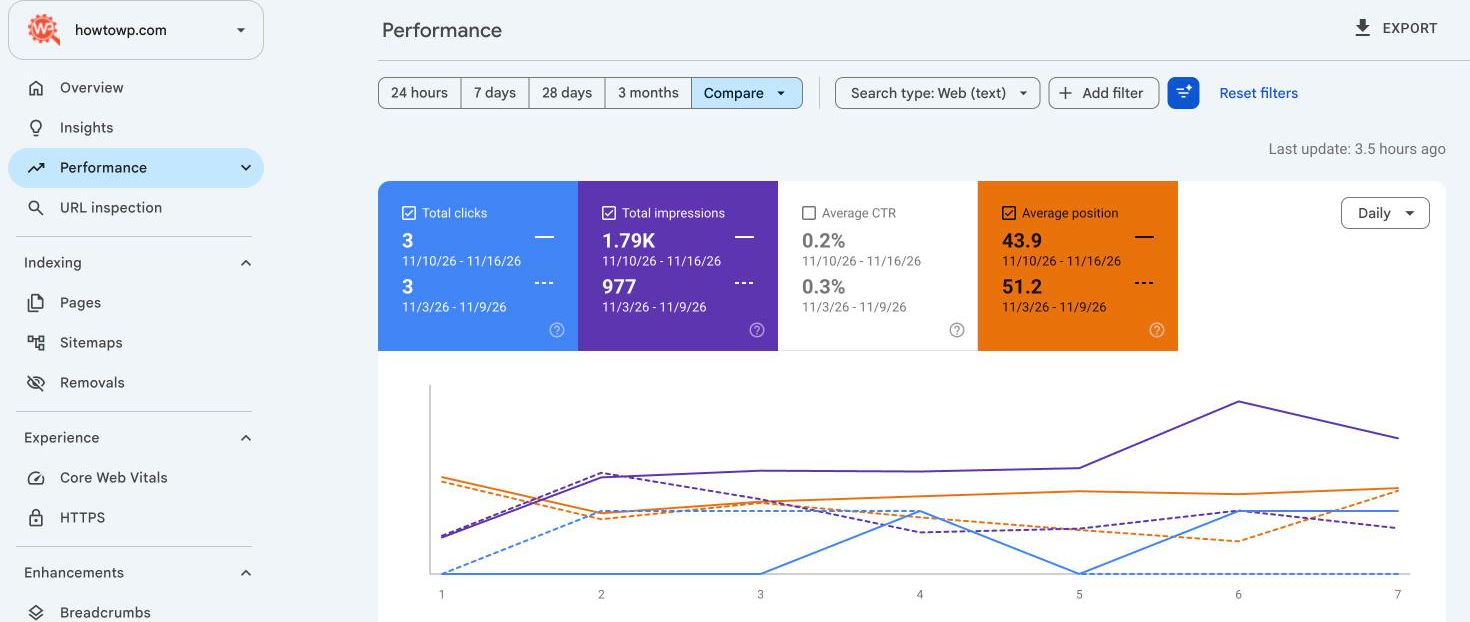
For the November 2026 update, that means comparing a full week in early December with 3 to 9 November 2026, the last full week before the rollout started. In Search Console, open the date picker, choose Compare, and set both custom ranges.
Search Console data runs about two days behind, so wait until the last day of your comparison week has full data before you judge it.
Comparing a whole week with a whole week evens out weekday and weekend differences. Comparing a single day, or the middle of the rollout, mostly measures noise.
Step 4: Read the Numbers the Right Way
A drop in clicks alone doesn’t prove the update hit you. Look at the metrics together:
| What you see | What it usually means |
|---|---|
| Impressions down and average position worse (a higher number, such as 6 moving to 24) | Your pages rank lower. This is what a core update impact looks like. Check it page by page, because the site-wide average can look better when weak pages drop out completely. |
| Impressions steady, clicks down | Rankings held, but fewer people clicked. Check whether AI Overviews or other search features (like People Also Ask) now appear for your queries. |
| One page or topic down, the rest steady | The update (or something else) affected that content specifically. Look at those pages first. |
| Everything down by the same amount on the same day | Often a technical problem rather than an update. Go to Step 5. |
Click the Pages and Queries tabs in the comparison view and sort by the difference in clicks to see which pages moved most. Google says a small drop in position isn’t a reason for drastic action, while a big fall (its example is position 4 to 29) calls for a closer look at that page.
Check search types separately too. Images and Video can move differently from Web results. Finally, compare with the same weeks last year if you have the data, to separate the update from your normal seasonal pattern.
Step 5: Rule Out WordPress Problems First
Before you rewrite a single post, check the WordPress issues that cause sudden drops. Any one of these can look exactly like an update hit:
Is “Discourage search engines” turned on?
Go to Settings > Reading and make sure Discourage search engines from indexing this site is unchecked. It’s often left on after moving a site from staging to live.
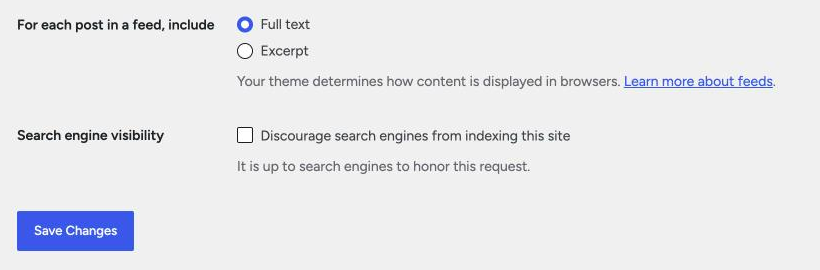 Reading screen with Discourage search engines from indexing this site unchecked” class=”wp-image-135088″/>
Are important pages set to noindex?
A noindex tag tells Google to leave a page out of search results. Your SEO plugin can noindex a single post, a whole post type or an archive. In Search Console, open Indexing > Pages and look for a jump in “Excluded by ‘noindex’ tag”. Use URL Inspection on a page that dropped to see whether Google can still index it.
Are bots being blocked?
A security plugin or Cloudflare rule that blocks crawlers can cut your visibility overnight. Our guide on checking if your WordPress site is blocking AI crawlers shows how to test what Googlebot and AI bots actually receive from your site.
A canonical tag tells Google which URL is the main version of a page. After cloning a staging site or updating an SEO plugin, canonicals can end up pointing at the wrong URL or at the old staging domain. Use URL Inspection on a page that dropped and compare the user-declared canonical with the one Google selected.
Is your sitemap still working?
Open your sitemap URL (for example /wp-sitemap.xml or the one your SEO plugin creates) and confirm it loads. In Search Console, check Indexing > Sitemaps for errors.
Did speed or errors change?
A plugin update can break pages or slow them down. For broken pages, check Indexing > Pages in Search Console for a jump in “Not found (404)” or “Server error (5xx)”, and Settings > Crawl stats for failed requests. For speed, check the Core Web Vitals report, and test a few key pages yourself. If you changed caching recently, our guide to clearing the WordPress cache walks through every layer.
Step 6: Cross-Check With Rank Tracking and Competitors
Search Console tells you what happened to your site. It doesn’t tell you whether competitors moved too, and it doesn’t keep daily rankings for the keywords you care about.
That’s where a rank tracker helps. In Semrush, Position Tracking records daily positions for your target keywords against competitors, so you have a dated record across the whole rollout. Organic Research shows whether competitors’ rankings moved at the same time, which tells you if the change is about your site or the whole topic. Site Audit crawls your site to rule out technical problems.
Given the reports of rank trackers disagreeing during this rollout, use third-party data as a second opinion next to Search Console, not as a replacement for it.
What to Do if the Core Update Hit Your Site
If you’ve ruled out technical causes and your rankings fell for specific pages or topics, the update most likely reassessed that content. There is no quick technical fix for that. Google’s advice is to review your content honestly against its self-assessment questions, for example:
- Does the content provide original information, research or analysis?
- Does it give a substantial, complete description of the topic?
- Would you bookmark it or recommend it to a friend?
- Is it written or reviewed by someone who clearly knows the topic?
- Was it created mainly to help people, or to attract search visits?
Improve the pages that dropped most, starting with the ones that brought in the most traffic before. Recovery usually takes time, and often shows up at a later core update rather than within days.
If you’d like a second pair of eyes on the technical side, our WordPress maintenance services include checking indexing, plugins and site health.
What We’ve Seen on How-To WP So Far
We’re tracking this update on How-To WP too. Our weekly numbers are small, so they swing a lot from week to week. Comparing the first rollout week (10 to 16 November 2026) with the week before (3 to 9 November), Search Console shows impressions up from 977 to 1.79K and average position improving from 51.2 to 43.9, with clicks flat at 3. That looks positive, but it’s mid-rollout data, which is exactly what this guide tells you not to judge yet. Small numbers and mid-rollout weeks are mostly noise. We’ll add the proper week-after comparison once the rollout is complete.
Frequently Asked Questions
How long does a Google core update take?
Usually up to two weeks. Google announced that the November 2026 core update may take up to two weeks to complete, starting on 10 November 2026.
Can I recover before the next core update?
Sometimes, if you make substantial improvements, but Google says some changes only show up after a later core update. Focus on improving the content rather than waiting for a specific date.
Does a core update target WordPress sites?
No. Core updates apply to all sites regardless of the platform. WordPress sites are only affected by how Google assesses their content, the same as any other site.