How to Add an Admin User in WordPress (Without Sharing Your Password)

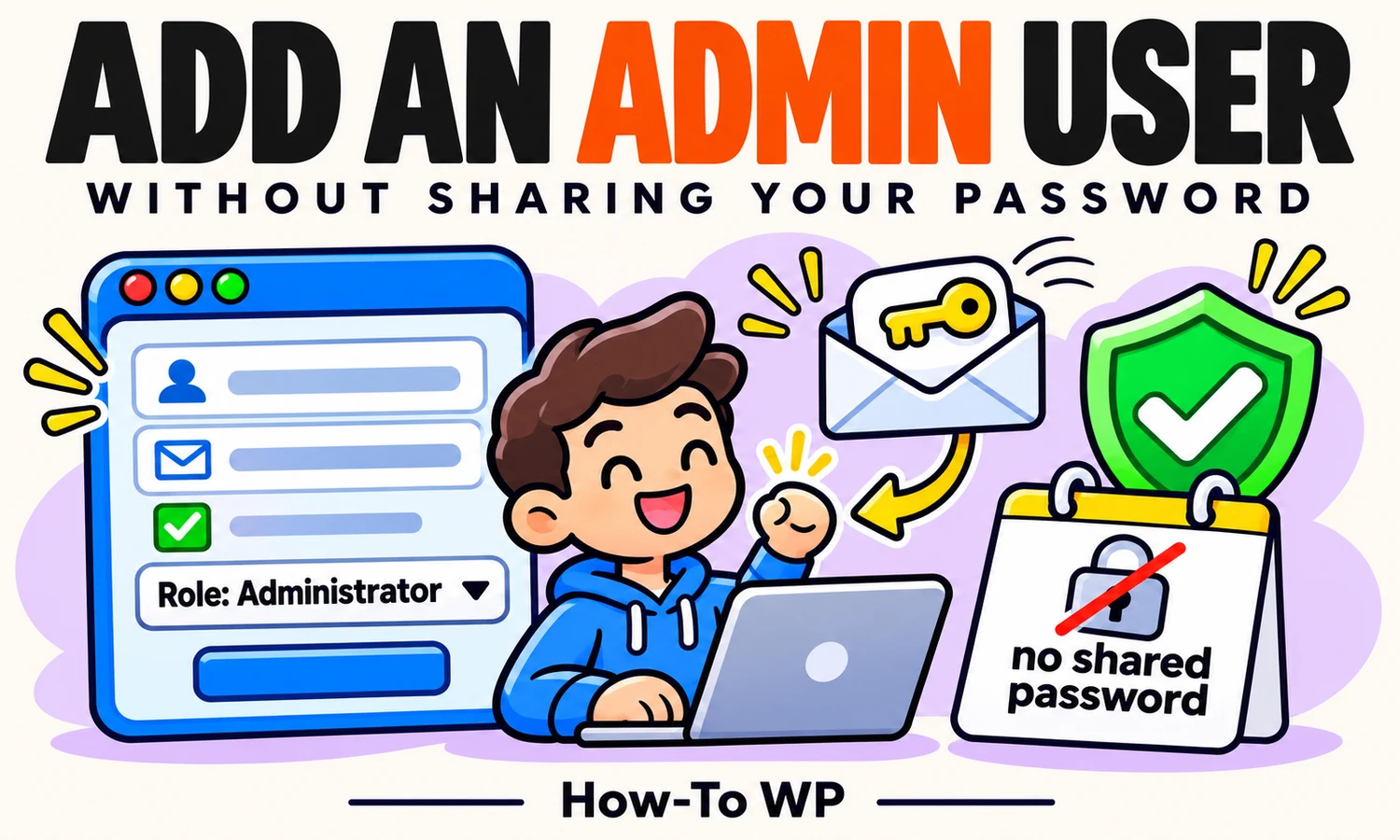
To add an admin user in WordPress, go to Users > Add User, enter the person’s username and email address, leave Send the new user an email about their account ticked, set Role to Administrator and click Add User. WordPress then emails them a link to set their own password, so you never have to send a password to anyone.
This is the safe way to give a developer, a designer or a migration specialist access to your site. I ask my own clients to do exactly this before I start a migration, and I wrote this guide so they have something to follow. I tested every step on a lab site running WordPress 7.1.5 in November 2026, and all the screenshots come from that test. The new user in them, Alex Developer, is a demo account.
- Never share your own login. Give each person their own account, so you can remove it later without changing your password.
- Let WordPress send the password link. The person picks their own password, and nothing secret travels by email or chat.
- Remove or downgrade the account when the work is done. It takes a minute and closes the door behind them.
Before You Start: Check That You Are an Administrator
Only Administrators can add users. To check your own account, go to Users > All Users, find your username and look at the Role column. It should say Administrator.
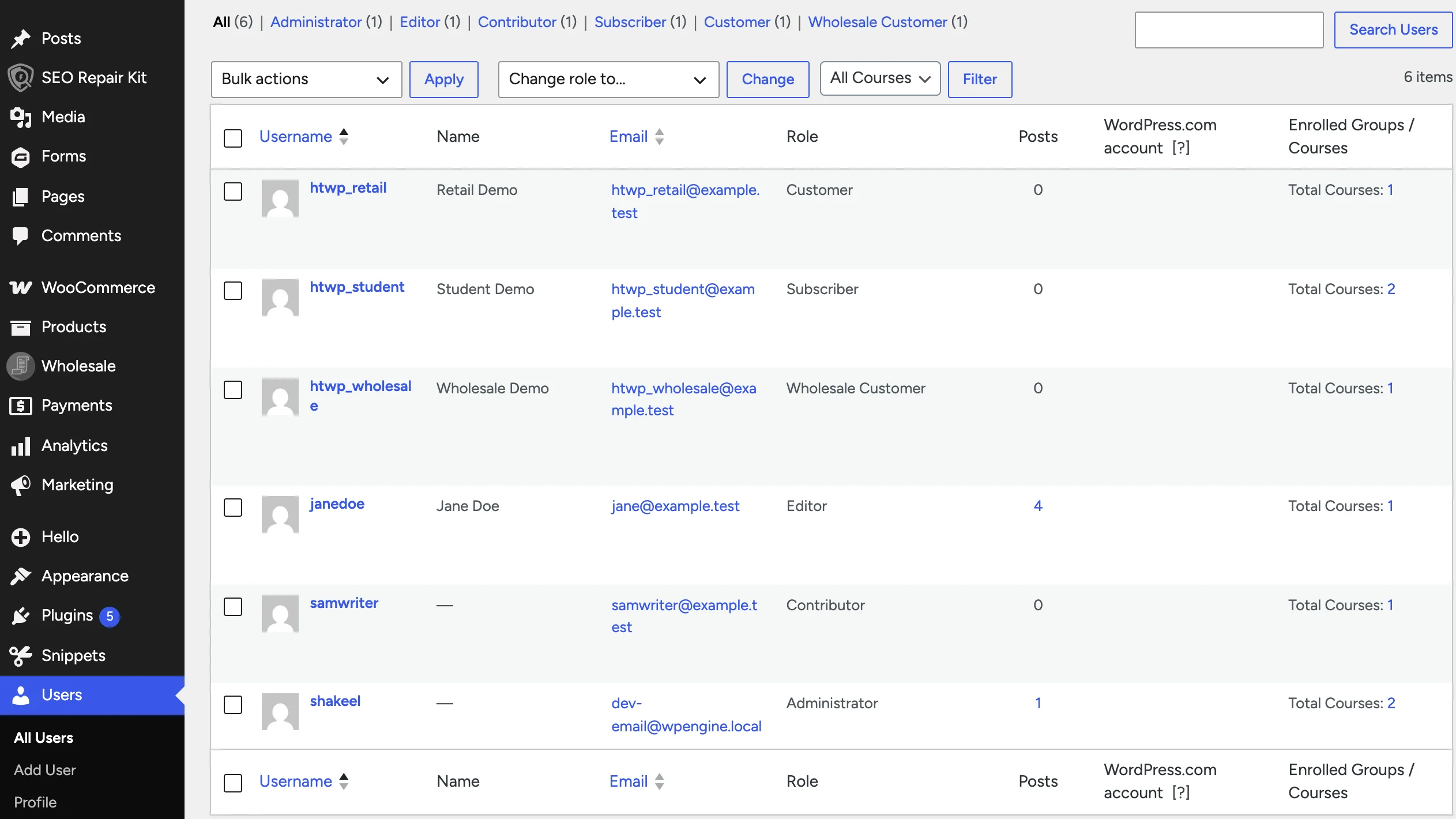
If you don’t see a Users menu at all, your account is not an Administrator. Ask another Administrator to add the new user, or see my guide to fixing “Sorry, you are not allowed to access this page” if your own Administrator role has gone missing.
If your site is a WordPress Multisite network and the person needs to manage the whole network, you want a Super Admin instead. My guide to making someone a Super Admin covers that.
Step 1: Open Users > Add User
Log in to your WordPress dashboard. In the left menu, hover over Users and click Add User. You can also click the Add User button at the top of the All Users screen.
Older versions of WordPress call this link Add New or Add New User. It is the same screen.
Step 2: Enter the Username and Email
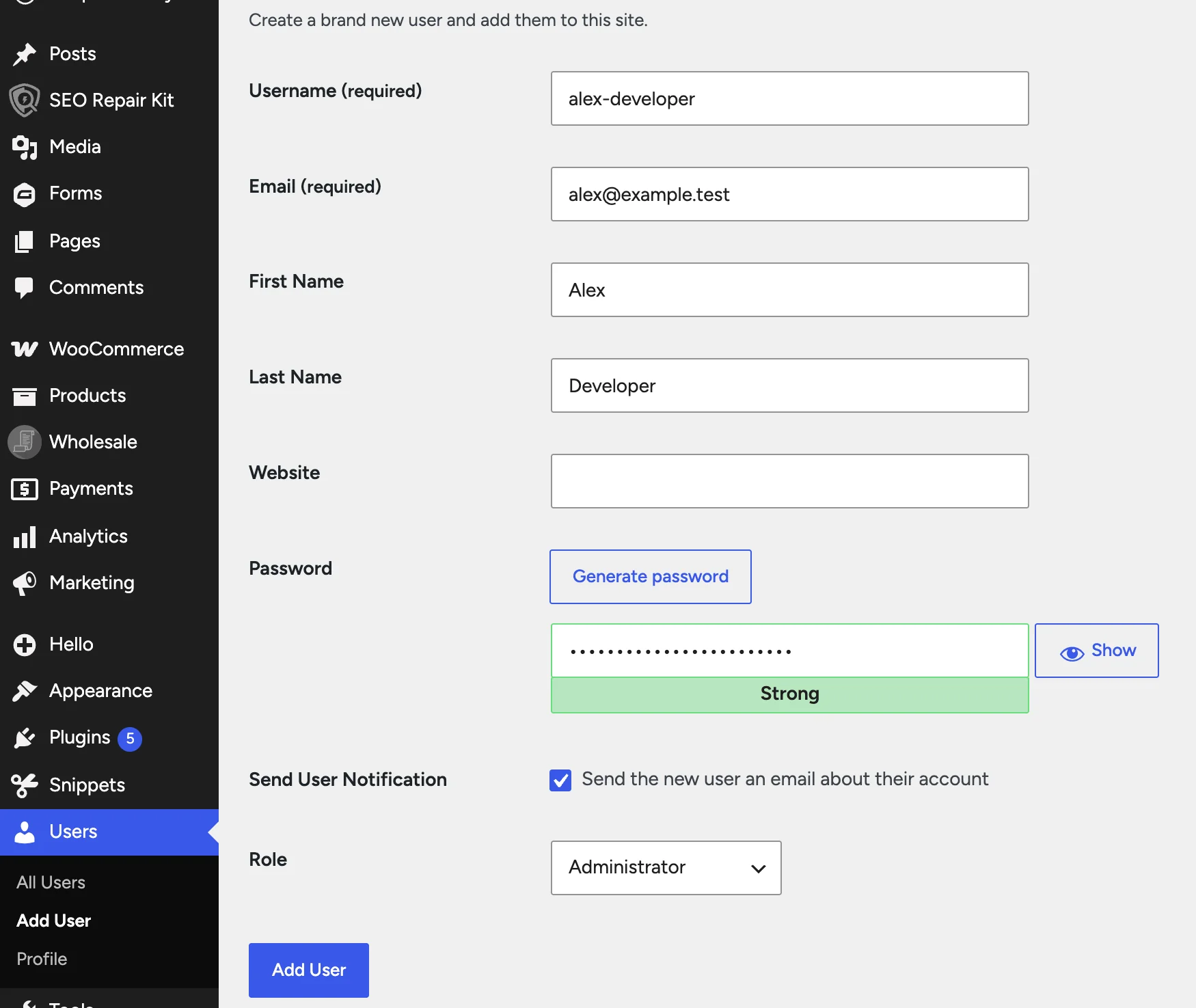
Fill in these fields:
- Username (required): something that identifies the person, such as
alex-developer. Choose it carefully, because WordPress doesn’t let you change a username later. Avoidadmin, because it is the first name attackers guess. - Email (required): the person’s own email address, never yours. The set-password link goes here, and so does every future password reset.
- First Name, Last Name and Website: optional. Adding a name makes the account easy to recognise later in the Users list.
You can ignore the Password field. WordPress fills it with a strong random password that nobody needs to see, and the person replaces it when they set their own.
Step 3: Leave “Send the New User an Email” Ticked

Send the new user an email about their account is ticked by default. Leave it that way. WordPress then sends the person a “Login Details” email with a link to choose their own password. You never see that password, and you never have to type one into an email or a chat message.
If you untick it, WordPress creates the account silently, and the only way in is the password in the box above. You would then have to copy it and send it yourself, which is exactly what this method avoids.
Step 4: Set the Role to Administrator
Open the Role dropdown and choose Administrator. New users default to Subscriber on most sites, so check this before you save.
Administrator is the right role for someone who needs to install plugins, change the theme, run a migration or fix errors. If the person only needs to work on content, a lower role is safer:
| Role | What it can do | Give it to |
|---|---|---|
| Administrator | Everything on a single site: plugins, themes, settings, users and all content | Developers, migration specialists, whoever maintains the site |
| Editor | Publish and edit all posts and pages, including other people’s, and moderate comments | Someone who manages your content |
| Author | Write, publish and edit their own posts and upload media | A regular writer |
| Contributor | Write and edit their own posts, but not publish them | Guest writers whose posts you review |
| Subscriber | Log in and edit their own profile only | Members or customers |
| Shop Manager (WooCommerce) | Manage products, orders and store settings, but not plugins or themes | Staff who run your shop |
Plugins can add their own roles, so your dropdown may show more options, as it does on my lab site with WooCommerce and LearnDash installed.
Step 5: Click Add User and Check the List
Click the blue Add User button. WordPress takes you back to the Users list with a New user created notice, and the new account appears with Administrator in the Role column.
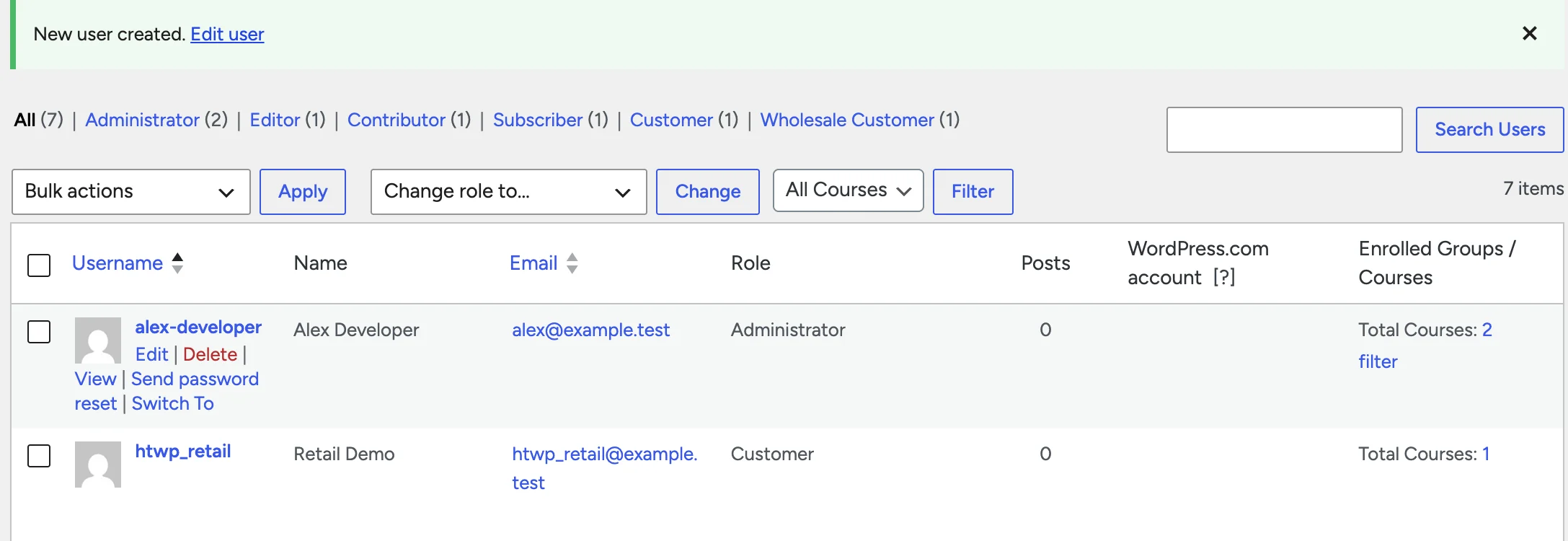
In my test, WordPress also sent a “New User Registration” email to the site’s admin email address, so you have a record of every account you add.
What the New User Does Next
The person receives an email with the subject [Your Site Name] Login Details. It contains a link to set their password.
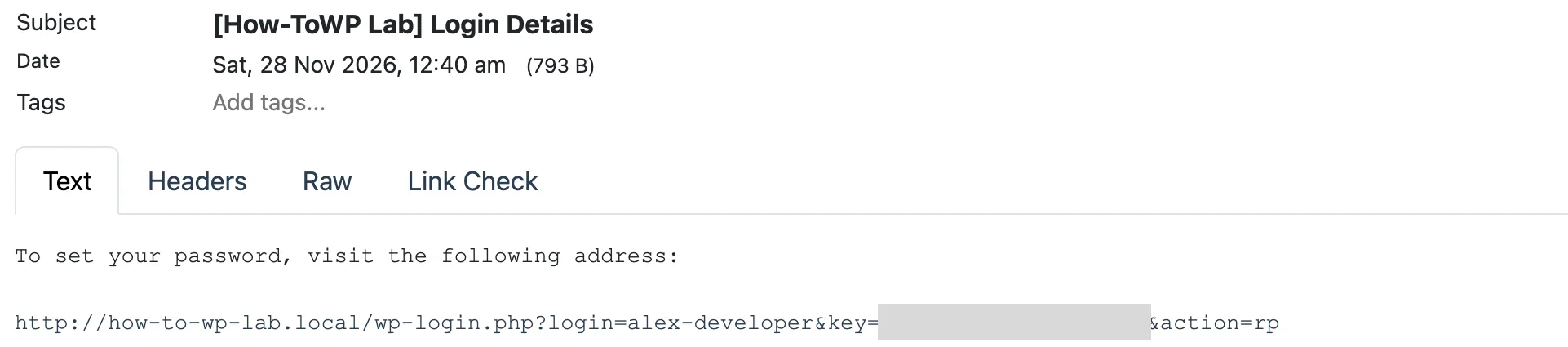
- They click the link and choose a password on your site’s login screen.
- They log in at
yoursite.com/wp-adminwith the username you chose and their new password.
The link works for 24 hours by default. If they miss it, you can send a fresh one at any time (see below).
If the Email Doesn’t Arrive
WordPress emails from many hosts end up in spam or never leave the server. Try these in order:
- Ask the person to check their spam or junk folder for an email from your site.
- In Users > All Users, hover over their name and click Send password reset. This sends a new set-password link without you touching the password.
- If no emails from your site arrive at all, your site can’t send email reliably. An SMTP plugin connected to a real email service usually fixes it, and it also fixes missing contact form and order emails.
Add an Admin User With WP-CLI
If you manage the site over SSH, WP-CLI can create the same account in one command. Replace the username and email with the person’s own:
wp user create alex-developer [email protected] --role=administrator --send-emailThe command creates the user with a random password. The --send-email option asks WordPress to send the new-user email, but on my lab the command-line email didn’t reach the inbox, because command-line PHP often uses different mail settings from the website. If that happens to you, use Send password reset from the Users list.
How to Remove Access When the Work Is Done
When the developer has finished, take their access away. You have two options.
Option 1: Change the Role
Go to Users > All Users, click the person’s username and change Role to No role for this site (or Subscriber), then click Update User at the bottom. The account stays, with its history, but it can no longer reach the dashboard. This is handy if you expect to work with the same person again.
Option 2: Delete the User
In the Users list, hover over the person’s name and click Delete. If they created any posts or pages, WordPress asks what to do with them.
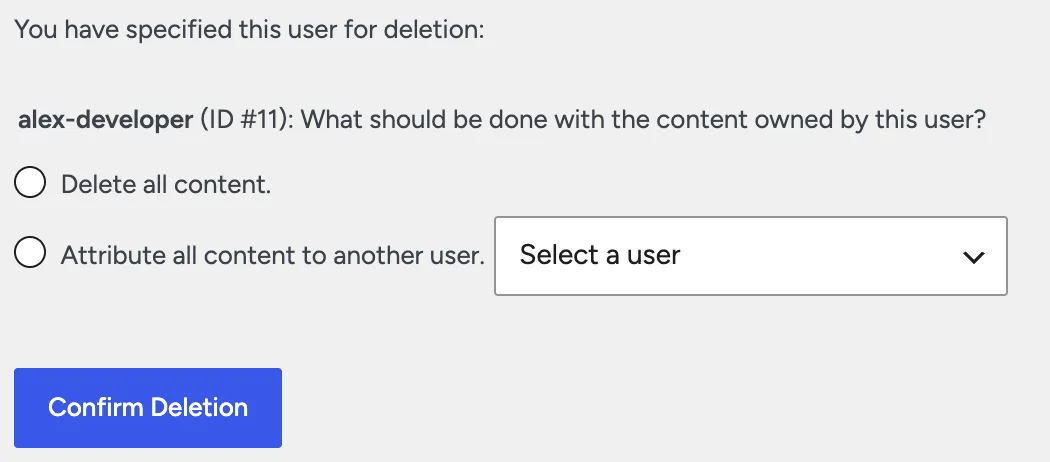
Choose Attribute all content to another user and select your own account, then click Confirm Deletion. Choosing Delete all content moves their posts and pages to the trash and permanently deletes anything else they created, such as media uploads, which you almost never want. If you only need to fix the author on a few posts, see how to change the author of a post.
Safety Tips Before You Give Someone Admin Access
- One account per person. Shared logins make it impossible to see who changed what, or to remove one person without locking out everyone.
- Only give Administrator when it’s needed. Someone writing posts needs Editor or Author, not full control.
- Take a backup first. Anyone with Administrator access can delete plugins, content and settings. A recent backup means any mistake can be undone.
- Turn on two-factor authentication for Administrators. WordPress doesn’t include it, but security plugins and many hosts add it.
- Remove access as soon as the job is done, using one of the options above.
- Check the Users list now and then. An Administrator you don’t recognise is a common sign of a hacked site.
- Hosting access is separate. A WordPress account doesn’t give anyone access to your hosting control panel, SFTP or database. If a developer needs those, add them through your host, ideally as a separate user too.
If you spot an Administrator you didn’t create, don’t just delete it. Someone may still have a way in. My WordPress malware removal service finds and closes the hole as well as removing the account.
Moving your site to a new host? My WordPress migration service starts with exactly this step: you add me as an Administrator, I do the move, and you remove my account when you’re happy.
Frequently Asked Questions
Can a WordPress Site Have More Than One Administrator?
Yes. There’s no limit. Every Administrator has the same full control, including the power to remove the other Administrators, so only give the role to people you trust.
Should I Just Give My Developer My Own Username and Password?
No. Your password may be the same one you use elsewhere, you can’t remove their access without changing it, and the site’s activity can’t tell you which of you made a change. A separate account solves all three.
Can I Change a Username Later?
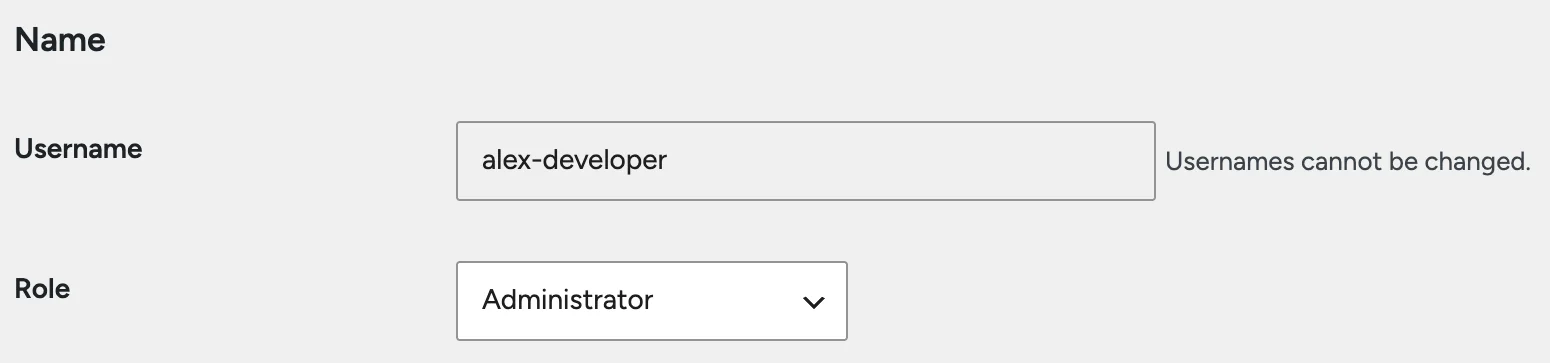
Not from the dashboard. WordPress shows “Usernames cannot be changed” on the Edit User screen. If you got it wrong, create a new user with the right name and delete the old one, attributing its content to the new account.
What’s the Difference Between Administrator and Super Admin?
On a normal site, Administrator is the highest role. Super Admin exists only on a Multisite network, where it controls every site in the network. See how to make someone a Super Admin if you run Multisite.
Can I Give Temporary Admin Access That Expires on Its Own?
Not with WordPress alone. Temporary login plugins can create an account that expires after a set time. For most one-off jobs, adding a normal user and removing it afterwards, as in this guide, works just as well and needs no extra plugin.